The Arrogant Daemon
One of the most frustrating experiences in modern Linux is configuring a system file exactly how you want it, only to reboot and find your changes completely wiped out.
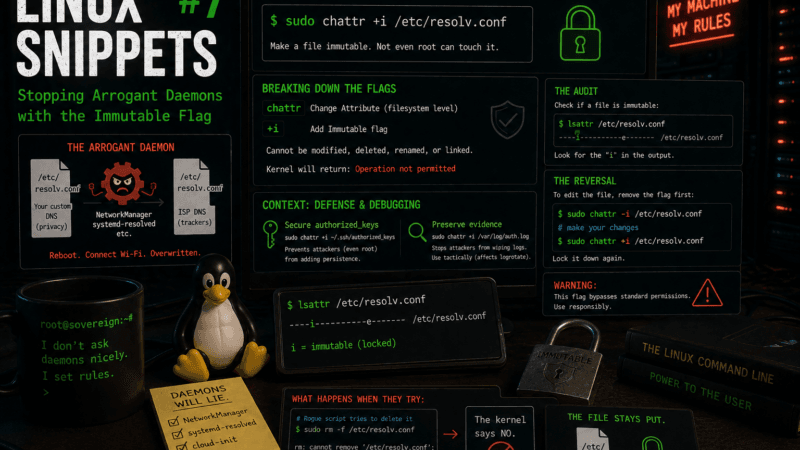
The classic offender is /etc/resolv.conf. You set up a strict, privacy-respecting custom DNS resolver. You save the file. But the moment you connect to a new Wi-Fi network, NetworkManager or systemd-resolved decides it knows best, deletes your custom configuration, and overwrites it with your ISP’s default trackers.
You could spend hours digging through undocumented configuration menus to try and politely ask these daemons to leave your files alone. Or, you can use the kernel’s filesystem attributes to absolutely forbid it.
The Command
When I need to guarantee that a file will never be modified, deleted, or renamed by any process on the system, I run this:
sudo chattr +i /etc/resolv.confBreaking Down the Flags
This command bypasses standard Linux user permissions entirely. It operates directly at the filesystem layer (ext4, btrfs, xfs, etc.).
chattr: Change Attribute. This modifies the hidden file attributes on a Linux file system, which sit beneath the standardrwx(read/write/execute) permissions you see withls -l.+i: Adds the Immutable flag.
Once this flag is set, the file is frozen in carbonite. Not even the root user can modify, delete, rename, or create a hard link to this file.
If a rogue script, an overzealous package manager, or NetworkManager runs sudo rm -f /etc/resolv.conf, the kernel will simply reply with: Operation not permitted. It is the ultimate “My machine, my rules” command.
The Context: Defense and Debugging
This trick is invaluable for maintaining sovereignty over your configurations, but it also has profound security applications:
- Securing Authorized Keys: If you manage a public-facing server, running
sudo chattr +i ~/.ssh/authorized_keysis a fantastic defensive measure. Even if an attacker manages to exploit a web application and gain localized root access, they cannot add their own SSH keys to your user account to establish persistence. - Preserving Evidence: If you suspect a machine has been compromised, an attacker’s first move will be to wipe the bash history and the auth logs to cover their tracks. Setting the immutable flag on
/var/log/auth.logprevents them from deleting the evidence while you investigate. (Though keep in mind, it will also preventlogrotatefrom archiving it, so use this tactically).
The Reversal and The Audit
Because this flag sits beneath standard permissions, it can drive other sysadmins (or future you) absolutely insane. If you run ls -l, the file will look perfectly normal, showing write permissions for root, yet any attempt to edit it will fail.
To see if a file has been locked down, use the list attribute command:
lsattr /etc/resolv.conf(If it is locked, you will see an i in the output list: ----i---------e------- /etc/resolv.conf)
When you actually do need to update the file yourself, you must explicitly remove the flag first:
sudo chattr -i /etc/resolv.confMake your edits, save the file, and immediately hit it with +i again to lock the door behind you.
Over to you: What is the most annoying background daemon on your system? Have you resorted to chattr to protect your configs, or do you fight the “proper” configuration battles via systemd drop-ins?