Introducing the “Sovereign Snippets” Series: Most of our time is spent in complex configurations, but the real power of a Linux system often hides in the short, punchy commands we use every day to maintain control over our hardware. I’m starting this series to document the specific “one-liners” I use to audit, secure, and manage my systems. No fluff – just functional tools for those who prefer the CLI over a GUI.
The Tyranny of the Default Route
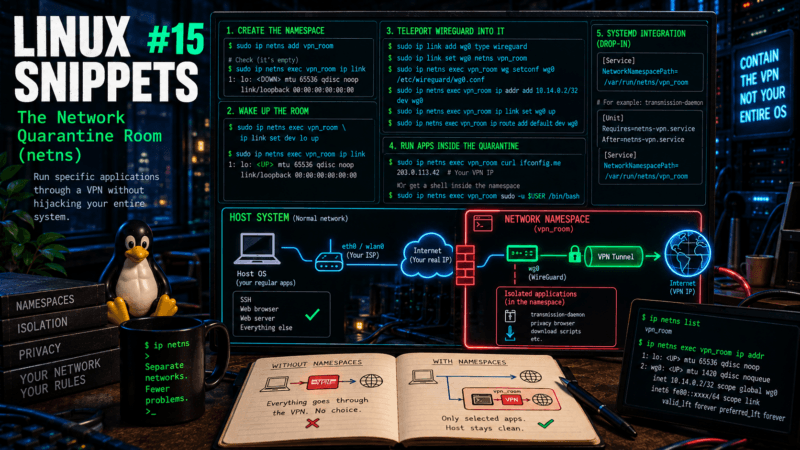
When you connect to a VPN—whether it is OpenVPN, WireGuard, or a commercial provider’s client—it does not ask for permission. It violently injects a new default route (0.0.0.0/0) into your system’s routing table. Suddenly, your SSH sessions drop, your local media server becomes unreachable, and every application on your machine is forced through the tunnel.
This is fine if you are working at a coffee shop and want total encryption. But what if you only want to route a single application (like a torrent daemon, a privacy-focused browser, or a specific download script) through the VPN, while your web server and SSH daemon remain cleanly connected to the physical ISP?
You don’t need a heavy Docker container or a full virtual machine. You just need to use the same kernel feature that powers Docker: Linux Network Namespaces (netns).
Step 1: Building the Quarantine Room
A network namespace is essentially a parallel universe for your network stack. It has its own isolated routing table, its own interfaces, and its own firewall rules.
Let’s create a new namespace and call it vpn_room:
sudo ip netns add vpn_roomIf you look inside this room right now, it is completely dark. There are no network interfaces, not even a loopback adapter. You can verify this by executing a command inside the namespace:
sudo ip netns exec vpn_room ip linkStep 2: Waking Up the Room
To make the room functional, we need to turn on its loopback interface.
sudo ip netns exec vpn_room ip link set dev lo upNow comes the crucial part. If we start a WireGuard or OpenVPN process normally, it will modify the host system’s routing table. But if we force the VPN client to start inside vpn_room, all of its aggressive routing modifications are trapped inside that namespace. The host system remains completely unaware and untouched.
Note: For a VPN to connect from inside the namespace to the outside world, you typically need to create a virtual ethernet (veth) cable linking the host to the namespace, and configure NAT. However, WireGuard has a brilliant, native interaction with namespaces that bypasses this complex plumbing.
Step 3: The WireGuard Teleport Trick
WireGuard interfaces (wg0) can be created in the host namespace, assigned an endpoint, and then teleported into a confined namespace.
Here is the magic sequence. First, create the interface on the host:
sudo ip link add wg0 type wireguardNext, move the interface directly into the quarantine room:
sudo ip link set wg0 netns vpn_roomFinally, configure the interface from inside the room (assuming you have a standard wg0.conf file):
sudo ip netns exec vpn_room wg setconf wg0 /etc/wireguard/wg0.conf
sudo ip netns exec vpn_room ip addr add 10.14.0.2/32 dev wg0
sudo ip netns exec vpn_room ip link set wg0 up
sudo ip netns exec vpn_room ip route add default dev wg0Step 4: Running Apps in the Quarantine
Your host system is still routing traffic normally over eth0 or wlan0. Your SSH connections are perfectly stable.
But vpn_room now has a default route pointing straight through the WireGuard tunnel. To force an application to use the VPN, you simply execute it inside the namespace.
Want to run a quick curl command anonymously?
sudo ip netns exec vpn_room curl ifconfig.meWant to open a shell where everything you type goes through the VPN?
sudo ip netns exec vpn_room sudo -u $USER /bin/bash(Running sudo -u $USER drops the privileges back down to your normal user account once inside the namespace, which is critical for security).
Any application launched from this shell is mathematically forbidden from seeing your physical network adapter. If the VPN tunnel drops, the application doesn’t leak your real IP address—it simply loses connectivity, because there is no fallback route in that namespace. It is the ultimate, kernel-level kill switch.
The systemd Integration
Running this manually is an excellent way to learn the architecture, but it is tedious for production. The true power of this setup is automating the namespace creation and sliding your applications into it seamlessly at boot using systemd.
1. The Room Builder Service
First, we create a one-shot service that builds the namespace and teleport the WireGuard interface into it. Create a file at /etc/systemd/system/netns-vpn.service:
[Unit]
Description=VPN Network Namespace (vpn_room)
After=network.target

[Service]
Type=oneshot
RemainAfterExit=yes

# 1. Build the room
ExecStart=/sbin/ip netns add vpn_room
ExecStart=/sbin/ip netns exec vpn_room ip link set dev lo up

# 2. Teleport WireGuard
ExecStart=/sbin/ip link add wg0 type wireguard
ExecStart=/sbin/ip link set wg0 netns vpn_room
ExecStart=/sbin/ip netns exec vpn_room wg setconf wg0 /etc/wireguard/wg0.conf
ExecStart=/sbin/ip netns exec vpn_room ip addr add 10.14.0.2/32 dev wg0
ExecStart=/sbin/ip netns exec vpn_room ip link set wg0 up
ExecStart=/sbin/ip netns exec vpn_room ip route add default dev wg0

# Clean up if the service is stopped
ExecStop=/sbin/ip netns delete vpn_roomEnable and start it with sudo systemctl enable --now netns-vpn.service.
2. The Application Drop-In
Now, let’s say you want to run transmission-daemon exclusively through this VPN. You don’t need to rewrite its entire service file. You just create an override (drop-in) snippet.
Run sudo systemctl edit transmission-daemon and add the following lines:
[Unit]
# Ensure the VPN room exists before starting
Requires=netns-vpn.service
After=netns-vpn.service

[Service]
# Slide the daemon into the namespace
NetworkNamespacePath=/var/run/netns/vpn_roomThat single NetworkNamespacePath= directive is the magic. When systemd starts Transmission, it natively executes it inside the vpn_room isolation chamber.
If the netns-vpn service fails to start, the Requires= directive guarantees that Transmission will refuse to boot, ensuring it can never accidentally communicate over your naked ISP connection. It is elegant, rock-solid, and completely invisible to the rest of the host OS.
Over to you: Do you prefer using full Docker containers for VPN isolation, or have you embraced the raw speed and zero-overhead of native ip netns? Let me know in the comments.