Introducing the “Linux Snippets” Series (or the Sovereign Snippets as I like to call them). This is the first of a series of post about how simple linux command one-lines can help you in your work; to stay private; sovereign; safe. Most of our time is spent in complex configurations, but the real power of a Linux system often hides in the short, punchy commands we use every day to maintain control over our hardware. I’m starting this series to document the specific “one-liners” I use to audit, secure, and manage my systems. No fluff – just functional tools for those who prefer the CLI over a GUI.
The Chatty Linux Desktop
The modern Linux environment is surprisingly chatty. Between background daemons, package managers, and various “cloud-synced” tools, your machine is constantly initiating connections. If you take data sovereignty seriously, the first step is knowing exactly what is leaving your network interface in real-time.
Instead of relying on clunky GUI monitors or the aging netstat utility, the modern iproute2 suite provides a much faster, more capable tool for this: ss.
The ss Command
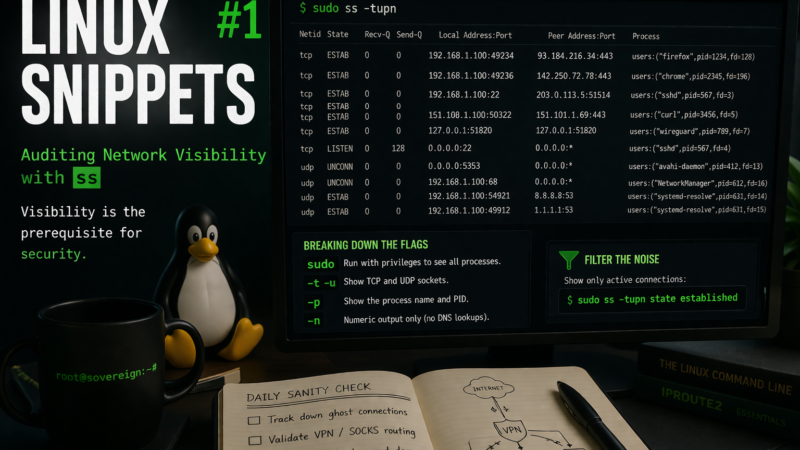
When I need an immediate, transparent view of every active network connection – and crucially, the specific process responsible for it – I run this:
sudo ss -tupn
Breaking Down the Flags
While it looks like a standard alphabet soup of flags, each one serves a precise purpose for auditing:
sudo: Ensures we have the necessary privileges to see process names and IDs for sockets we don’t explicitly own.-tand-u: Tells the tool to grab both TCP and UDP sockets.-p: Exposes the actual process name attached to the socket. This is where the real investigative value lies.-n: Forces a numeric output. This is a critical detail for privacy: it prevents the tool from trying to resolve DNS names. This makes the output instant and stops your machine from leaking additional DNS queries just to tell you who it is already talking to.
Real-World Scenarios
In a functional workflow, this command serves as a daily sanity check. I often use it to track down “ghost” connections. If I’ve closed my browser but the network activity monitor is still spiking, running this quickly reveals if a stray Electron app or a background update daemon like packagekitd has gone rogue.
It is equally indispensable when validating a new VPN tunnel or a SOCKS proxy. A quick check confirms whether local applications are actually routing their traffic through 127.0.0.1 as intended, rather than quietly leaking out over the default interface.
Filtering the Noise
If you find the output a bit too noisy on a busy machine, you can easily filter it. Appending state established directly to the command filters out the clutter of listening or wait-state sockets, showing you only the active conversations:
sudo ss -tupn state established
Visibility is the prerequisite for security.
It took me a while to get away from not using netstat and use ss instead. But now I can’t live without it.
Do you use ss?