Introducing the “Sovereign Snippets” Series: Most of our time is spent in complex configurations, but the real power of a Linux system often hides in the short, punchy commands we use every day to maintain control over our hardware. I’m starting this series to document the specific “one-liners” I use to audit, secure, and manage my systems. No fluff – just functional tools for those who prefer the CLI over a GUI.
The “Oh Shit” Moment
We’ve all been there. You are performing some routine “cleanup” on a server, your finger slips, and you rm a 50GB log file or, worse, a flat-file database that was currently being written to by a background daemon. You check the directory, the file is gone, and you start calculating how much data you’ve just lost.
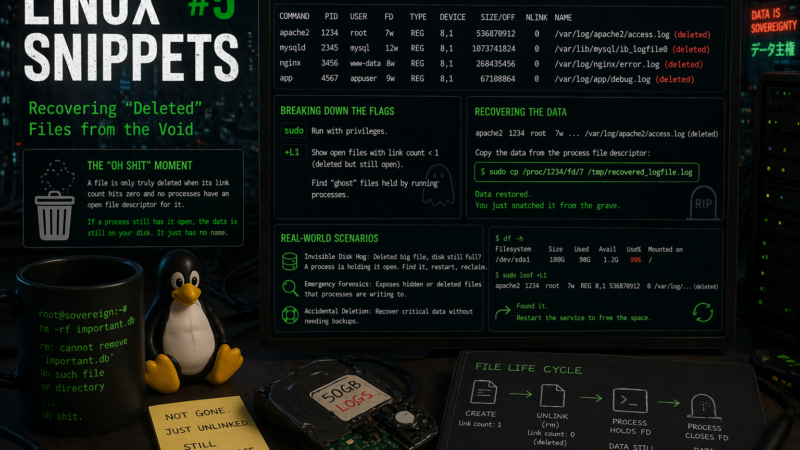
But here is the “hidden gem” of Linux filesystem architecture: a file is only truly deleted when its link count hits zero and no processes have an open file descriptor for it. If a process (like a web server or a database engine) still has that file open, the data is still sitting on your disk. It just doesn’t have a name in the directory tree anymore.
The Command
To find these “ghost” files that are deleted but still taking up space (and still holdable), we use lsof (List Open Files):
sudo lsof +L1Breaking Down the Flags
This is a very specific filter that most people never realize exists in the lsof manual:
sudo: Essential here, as you need permission to peek into the file descriptors of processes owned by other users or the system.+L1: This is the secret sauce. The+Lflag tellslsofto look at the link count of files. By specifying1, we are telling it to show us any open files that have a link count of less than 1.
In plain English: “Show me every file that has been deleted from the directory structure but is still being held open by a running program.”
Snatching Data from the Grave
Once you run this, you’ll see an output listing the Command, the PID (Process ID), and the FD (File Descriptor). It might look something like this:
apache2 1234 root 7w REG 8,1 536870912 0 /var/log/apache2/access.log (deleted)The 7w means it’s file descriptor number 7 and it’s open for writing. To recover that “deleted” data, you don’t need a specialized recovery tool. You just need to look into the /proc filesystem, which is the kernel’s way of exposing process information as files.
You can simply copy the data back to a safe location:
sudo cp /proc/1234/fd/7 /tmp/recovered_logfile.logReal-World Scenarios
This isn’t just about accidental deletions; it’s about system hygiene.
- The Invisible Disk Hog: Have you ever deleted a massive file to free up disk space, but
df -hshows the disk is still 99% full? It’s because a process still has that “deleted” file open.lsof +L1will show you exactly which process is “holding” that space hostage so you can restart the service and actually reclaim the blocks. - Emergency Forensics: If a malicious process is writing to a hidden/deleted file to hide its tracks, this command exposes exactly where that data is residing in memory and on disk.
This works identically across Bash, Zsh, and Fish because it relies on the underlying utility and the kernel’s /proc implementation rather than shell syntax.
Data sovereignty isn’t just about where your data lives; it’s about knowing how to get it back when the system tells you it’s gone.
Over to you: Have you ever had to dive into /proc to save your skin, or do you rely on a rigorous backup routine that makes these heart-attack moments a thing of the past? Drop a comment below.