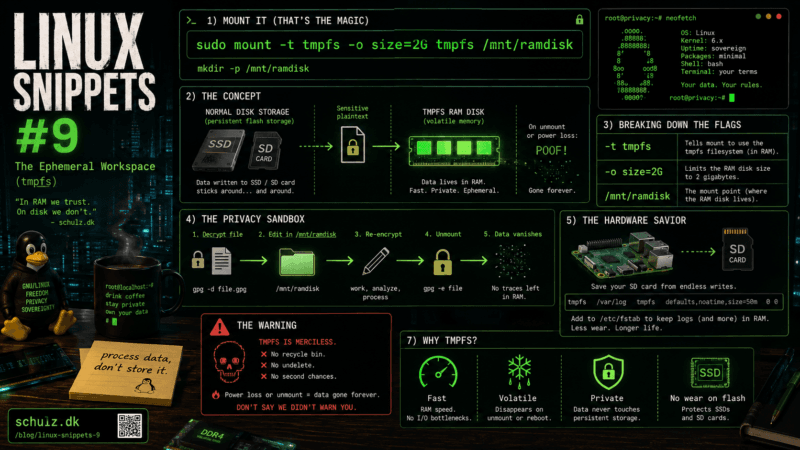
Introducing the “Sovereign Snippets” Series: Most of our time is spent in complex configurations, but the real power of a Linux system often hides in the short, punchy commands we use every day to maintain control over our hardware. I’m starting this series to document the specific “one-liners” I use to audit, secure, and manage my systems. No fluff—just functional tools for those who prefer the CLI over a GUI.
The Ghost in the Flash Storage
When you are dealing with sensitive data – like decrypting a secure archive to edit a config file, or extracting a private key – doing so on a standard solid-state drive is a massive privacy risk.
Modern SSDs use a technology called “wear-leveling.” To extend the life of the flash memory, the drive’s firmware constantly moves data blocks around behind the scenes. This means when you run rm secret.txt, you aren’t actually overwriting the data. You are just telling the filesystem to forget the index pointer. The plaintext data is still sitting on a flash chip somewhere, waiting to be overwritten or scraped by forensics software.
To truly handle data securely, you need an environment where the laws of physics guarantee deletion. You need a RAM disk.
The Command
To instantly carve out a block of your system’s volatile memory and mount it as a usable directory, run this:
sudo mount -t tmpfs -o size=2G tmpfs /mnt/ramdisk(Make sure the directory /mnt/ramdisk actually exists first by running sudo mkdir -p /mnt/ramdisk).
Breaking Down the Flags
This command uses tmpfs, a temporary file storage facility supported natively by the Linux kernel.
-t tmpfs: This specifies the filesystem type. Unlikeext4orbtrfs,tmpfsis explicitly designed to live in RAM (and swap space, if the system runs out of physical memory).-o size=2G: This is a crucial safety limit. It tells the kernel to allocate a maximum of 2 Gigabytes for this filesystem. If you don’t set a limit, a runaway log file or a massive download could consume all your system memory and crash the server.tmpfs /mnt/ramdisk: This maps the virtual device to a physical path on your system.
The Context: Privacy and Hardware Preservation
Once mounted, you can use /mnt/ramdisk exactly like any other folder. You can cd into it, download files with wget, compile code, or decrypt archives. It will read and write blazingly fast because there is no mechanical latency or SATA bottleneck.
But its real power lies in its volatility.
The Privacy Sandbox:
If you need to view a sensitive document, you mount the RAM disk, decrypt the file into it, edit it, and encrypt it back to your main drive. When you are done, you run sudo umount /mnt/ramdisk. The memory is immediately reallocated to the system. If someone kicks in your door and rips the power cord out of the wall, the electrical charge in the RAM dissipates in seconds. The data mathematically ceases to exist.
The Hardware Savior:
If you run a Raspberry Pi, you already know the pain of corrupted SD cards. Constant, tiny writes (like system logs or database caching) will burn through flash memory incredibly fast. You can use /etc/fstab to mount /var/log as a tmpfs RAM disk automatically at boot:
# Add this line to /etc/fstab
tmpfs /var/log tmpfs defaults,noatime,size=50m 0 0This ensures your system logs are written to RAM instead of the physical SD card. Sure, you lose your logs when the Pi reboots, but your hardware will last for years instead of months.
The Warning
tmpfs is merciless. There is no recycle bin, no recovery software, and no “undelete” command. If you save your only copy of a script to this directory and your machine kernel panics, or you accidentally unmount it, that data is gone forever. It is an ephemeral workspace – use it to process data, never to store it!
Over to you: Do you use RAM disks to speed up code compilation, or do you reserve them strictly for security sandboxes? Let me know in the comments.