Storing personal files on a commercial cloud service is a gamble with your privacy. Providers will happily tell you your data is encrypted “at rest” on their disks. That server-side encryption is entirely useless the moment someone compromises your account credentials or a rogue employee decides to browse the storage arrays. True data sovereignty requires encrypting the files before they ever leave your local machine.
You could manage this manually using GPG. Selecting individual files, entering passphrases, and moving the encrypted blobs into your sync folder works for about three days. Then it becomes tedious. You mistype a password, or you forget to encrypt a sensitive tax document, and the whole security model falls apart.
The actual solution is rclone.
Think of it as rsync built specifically for cloud providers. It natively supports almost every major storage backend, including pCloud and Dropbox. More importantly, it features a built-in cryptographic wrapper. You point it at a local directory, and it will encrypt the filenames, directory structures, and file contents on the fly before pushing them to the remote server.
Setting up an Encrypted Rclone Job
I will use Dropbox for this example since it is the default storage bin for most of the internet. If you use pCloud or another provider, the logic is identical. You simply select a different number from the provider list.
The setup requires two distinct steps. First, we connect rclone to the cloud provider. Second, we build the cryptographic layer on top of that connection.
1. The Base Remote
Open your terminal and initiate the configuration wizard.
rclone configPress n to create a new remote. Name it something obvious like dropbox_base.
The wizard will present a massive list of supported storage providers. Find the number corresponding to Dropbox and enter it. When it asks for a client ID and client secret, leave both blank to use the default application credentials.
Skip the advanced configuration. rclone will then ask for auto-setup confirmation and open a browser window. Log into your Dropbox account and authorize the application. You now have a direct line to your cloud storage.
2. The Crypt Remote
This is where the actual security happens. We are going to build a virtual encrypted drive that sits on top of the base remote we just created.
Run rclone config again. Press n for a new remote and name it dropbox_crypt.
When asked for the storage type, look for the option labeled Encrypt/Decrypt a remote (usually listed as crypt).
The wizard will ask for the remote to encrypt. You need to point it to a specific directory inside your base remote. I recommend isolating your encrypted data in its own folder.
Remote to encrypt/decrypt: dropbox_base:/EncryptedBackupNext, it asks how to handle filename encryption. Select standard to completely scramble the filenames while keeping the directory structure functional. Choose to encrypt directory names as well.
The system will then prompt you for two passwords.
- Password: The primary key used to encrypt the file contents.
- Salt: A secondary key used for the filename encryption.
Generate two long, random strings and store them immediately in your password manager. If you lose these keys, your data is mathematically gone. Neither Dropbox nor the rclone developers can help you recover it.
3. Pushing the Data
You now treat dropbox_crypt like a normal hard drive. To push your local Documents folder to the encrypted cloud vault, use the standard sync command.
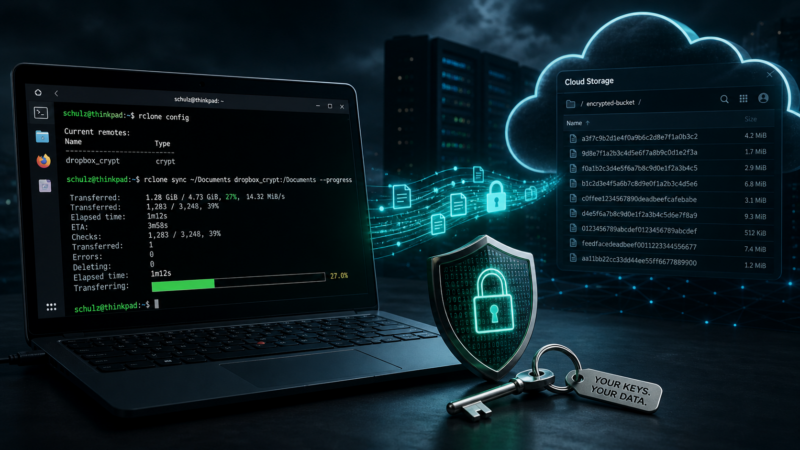
rclone sync /home/user/Documents dropbox_crypt:/Documents --progressrclone reads the files from your local disk, encrypts them in your system’s memory, and pushes the cipher-text to Dropbox. If you log into the Dropbox web interface, you will not see your tax returns or personal photos. You will just see a directory full of randomized garbage files with meaningless, alphanumeric names.
To pull the data down to a new machine, you install rclone, repeat the configuration using your saved passwords, and reverse the sync command.
rclone sync dropbox_crypt:/Documents /home/user/RestoredDocuments --progressThe Illusion of the Cloud
If the terminal is too austere for daily use, you can use RcloneTray. It sits in your system tray and lets you mount that dropbox_crypt profile as a regular volume. You interact with it using your standard file manager while the cryptographic heavy lifting happens invisibly in the background.
The commercial cloud is literally just someone else’s computer. They sell convenience and market it as security. Trusting their server-side encryption means trusting their internal key management, their hiring practices, and their incident response teams.
By inserting rclone into the pipeline, you reduce these billion-dollar companies to their only actual utility. They become dumb, highly available hard drives. They get to store the encrypted blobs. You keep the math that makes them legible. If a provider suffers a catastrophic breach tomorrow, the attackers walk away with nothing but gigabytes of randomized noise.
Data sovereignty does not mean you have to host everything on a noisy server in your living room. It just means you stop giving away the keys.
In the end, encryption does not matter much if you store your data in a company in the US (or other countries with broken privacy and data security laws).
Instead go for European based cloud providers like pCloud (20gb free) or Filen.io (10gb free).