Let’s keep the snippet train rolling. This time it is one of my favorite commands – ssh. Enjoy!
The Hostile Local Network
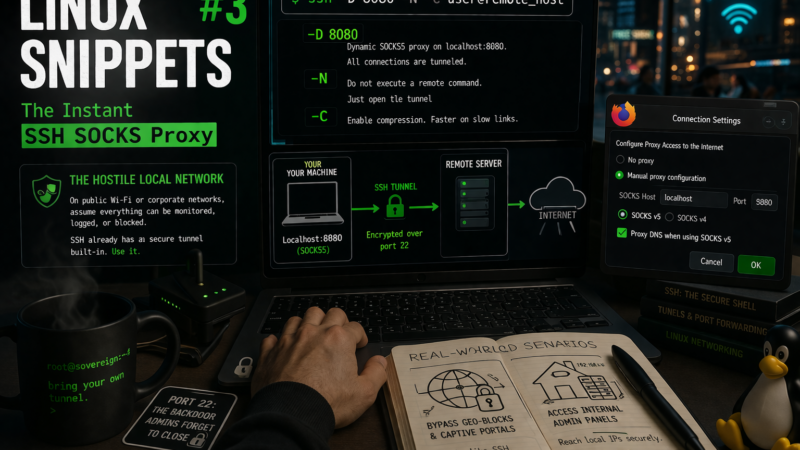
Whether you are tethered to public Wi-Fi at a café or connected to an overly restrictive corporate guest network, you should assume the local network layer is hostile. Everything from DNS requests to unencrypted traffic can be monitored, logged, or blocked.
While a full WireGuard or OpenVPN setup is the standard solution, establishing one on a new machine or dealing with restrictive firewalls that block standard VPN ports can be tedious. If you just need a secure, encrypted tunnel out for your web browser, SSH already has the capability built-in.
The Command
You can turn any remote server you have SSH access to into a local SOCKS5 proxy using dynamic port forwarding.
ssh -D 8080 -N -C user@remote_host
Once this is running, you simply tell your browser (like Firefox) to use localhost:8080 as its SOCKS5 proxy, ensuring you check the box to “Proxy DNS when using SOCKS v5”.
Breaking Down the Flags
This command strips away the usual interactive shell and focuses SSH entirely on its networking capabilities:
-D 8080: Dynamic application-level port forwarding. This allocates a socket on your local machine to listen on port 8080. Whenever a connection is made to this local port, the connection is forwarded over the secure channel, and the remote machine acts as the proxy.-N: Tells SSH not to execute a remote command. This is crucial for tunnels. Instead of dropping you into a remote bash shell that you have to keep open, it just establishes the connection and sits quietly.-C: Requests compression of all data. If you are on a weak cellular connection or terrible hotel Wi-Fi, this can significantly speed up text-heavy web browsing.
Real-World Scenarios
This is a “swiss army knife” technique that belongs in every developer’s mental toolkit.
- Bypassing Geo-blocks and Captive Portals: If a local network is throttling specific sites or blocking non-standard ports, this tunnel routes all your traffic through port 22 (which is almost never blocked). To the local network administrator, it just looks like a standard, encrypted SSH session.
- Accessing Internal Admin Panels: If you self-host services at home but restrict access to the local LAN for security (e.g., your router’s config page or a local Proxmox dashboard), you don’t need to expose them to the open web. You SSH into your jump host with this command, point your browser to the proxy, and you can now access local IPs (
192.168.x.x) as if you were sitting on your living room couch.
The network is hostile. Bring your own tunnel.